Admin User Interface
Code
The Code area is where you write and organize your application’s business logic. While the Schema area gives you a visual overview of types and relationships, the Code area focuses on what those types actually do – their methods, computed properties, and API configuration.
Working with the Code Area
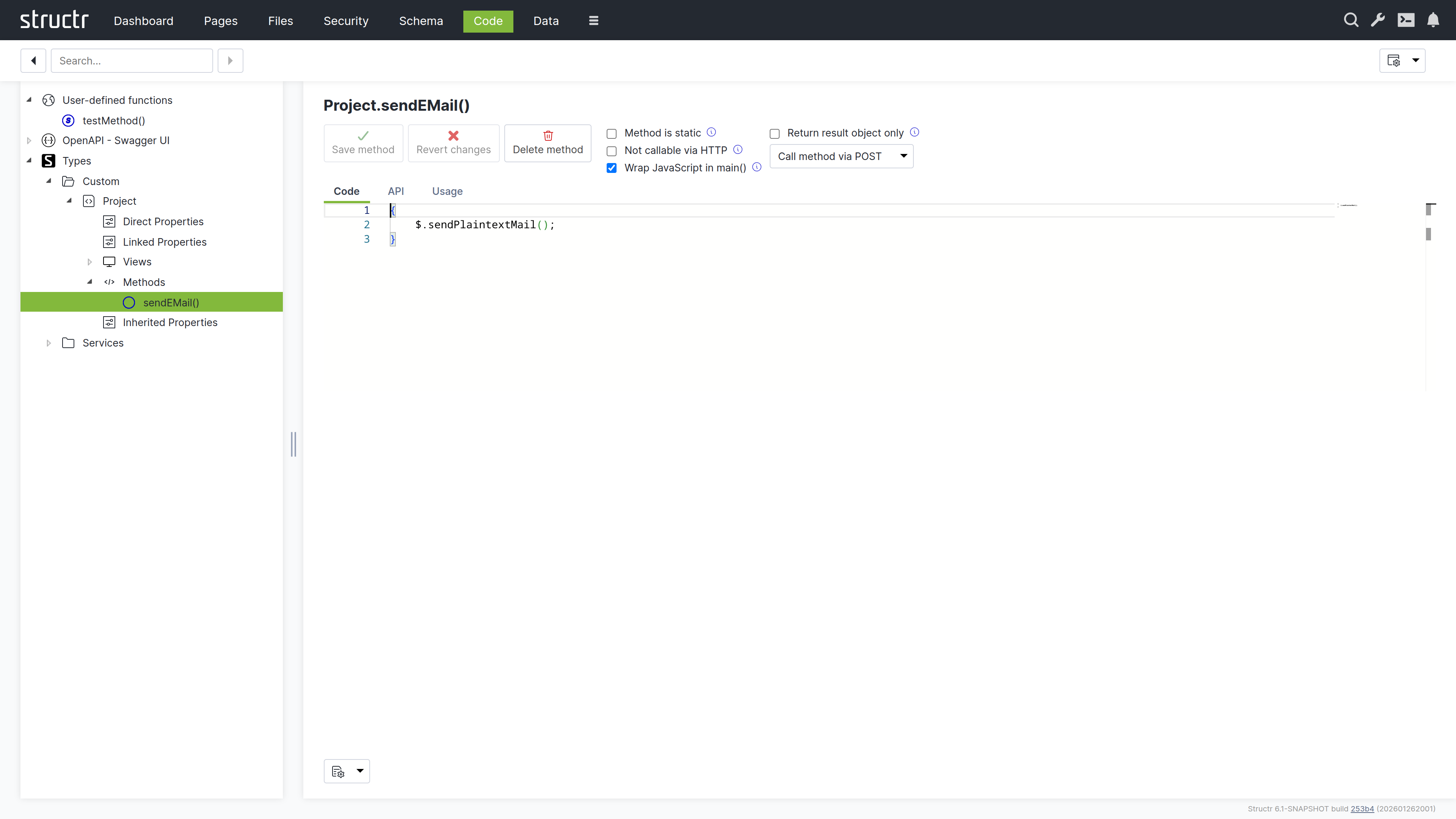
The screen is divided into a navigation tree on the left and a context-sensitive editor on the right. The tree organizes your code by type: expand a type to see its properties, views, and methods. Click any item to edit it.
Here you also have access to user-defined functions (global utilities available throughout your application) and service classes (containers for business logic that does not belong to a specific type). The OpenAPI output is also available here, which is useful for verifying how your methods appear to API consumers.
The Navigation Tree
The tree contains the following sections:
Scratchpads
Scratchpads are simple blocks of code that you can develop and run without creating a method. Use them for experiments and one-off scripts; click the plus icon in the Scratchpads view to add one.
User-defined functions
This shows global functions in a table format – the same view that is available in the Schema area. These functions are callable from anywhere in your application.
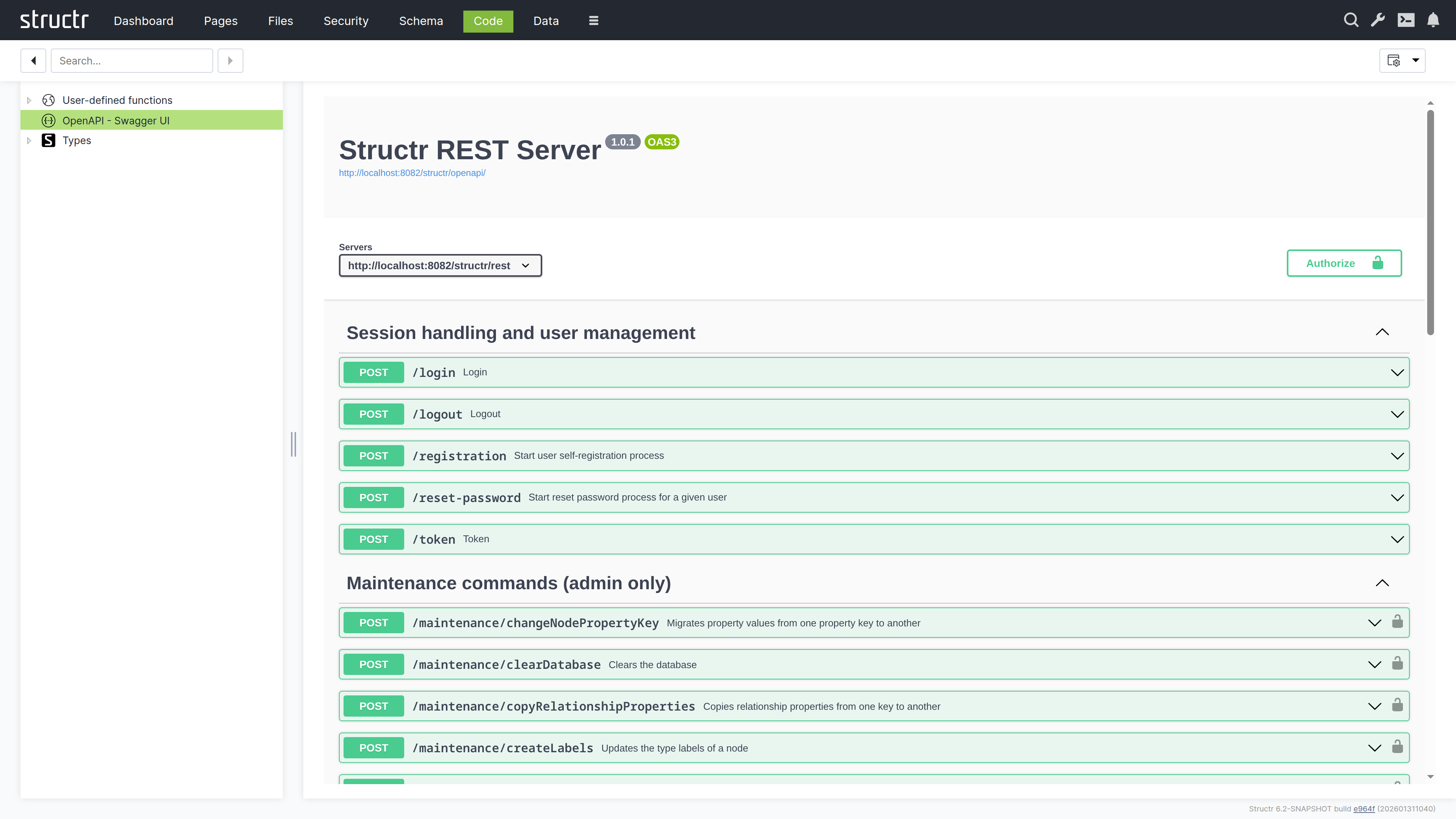
OpenAPI - Swagger UI
This section displays the OpenAPI specification for your application in Swagger UI. The specification is also exposed as a public endpoint that external consumers can access to discover and interact with your APIs. It serves as the authoritative reference for all API endpoints defined in your application, documenting available methods, their parameters, and expected responses.
Data Sources
This section lists the script-based and query-based data sources that feed data-driven components. Each data source is a piece of code (a script or a query) that returns the objects a component displays, and this is where you edit that code. How components use data sources is described in Widgets & Components.
Processes
This section lists the BPMN processes of your application and gives access to the scripts attached to their elements, for example the code of script tasks and the expressions on gateways, so that process logic can be edited with the same editor as any other method. The processes themselves are modelled in the Processes area.
Types
This lists all your custom types and service classes in the two subsections Custom and Services. Expand a type to see its contents:
- Direct Properties – Properties defined on this type
- Linked Properties – Properties from relationships
- Views – Property sets for different contexts (API responses, UI display)
- Methods – The business logic attached to this type
- Inherited Properties – Properties from parent types or traits
This structure mirrors what you see in the Schema type editor, but it is organized for code navigation rather than visual modeling.
Services
This is a category under Types for service classes. Service classes can only contain methods, not properties. They are useful for grouping related business logic that does not belong to a specific data type – things like report generators, external integrations, or utility functions.
The Method Editor
Click any method to open the editor.
Writing Code
The editor is based on Monaco (the same engine as VS Code), with syntax highlighting for JavaScript and StructrScript, autocompletion, and all the features you would expect from a modern code editor.
At the bottom of the screen, a settings dropdown lets you configure the editor to your preferences: word wrap, indentation style, tab size, code folding, and more.
Method Configuration
Above the editor, several options control how the method behaves:
Method is static
This means the method can be called without an object instance – it is a class-level function rather than an instance method.
Not callable via HTTP
This hides the method from the REST API. Use it for internal utilities that should not be exposed.
Wrap JavaScript in main
This wraps your code in a main function, which affects scoping and is sometimes needed for compatibility.
Return result object only
This strips metadata from the response, returning just the result.
HTTP verb dropdown
This specifies which HTTP method triggers this function when called via REST API: GET for read operations, POST for creating things, PUT for updates, DELETE for removals.
Testing Your Code
For user-defined functions and static methods, a Run Dialog button appears in the action bar alongside Save, Revert, and Delete, provided the method is callable via HTTP. Click it to open a testing interface where you can enter parameters and execute the method immediately. The return value displays in the dialog, making it easy to test and debug without leaving the editor.
API Tab
Here you can define typed parameters for your method. Structr validates incoming requests against these definitions before your code runs, catching type mismatches and missing required parameters automatically. This also generates OpenAPI documentation.
Usage Tab
This shows how to call the method from different contexts: JavaScript, StructrScript, and REST API. The examples use your actual method name and parameters, so you can copy them directly into your code.
Searching Your Code
The search field in the secondary menu searches across all code in your application – schema methods, user-defined functions, and service classes. This is invaluable when you need to find where something is defined or used.
Note that the search does not include page content. For that, use the Pages area.
Two Views, One Model
The Code area and Schema area are two perspectives on the same underlying data. Changes you make in one immediately appear in the other.
Use the Schema area when you are thinking about structure – what types exist, how they relate to each other, what properties they have. Use the Code area when you are thinking about behavior – what methods do, how they are implemented, how they are called.